
Utilization Rate defines the success of online statement implementation.
🧮 Check Usage and Download Utilization:
- Go to Dashboard.
- Select Usage from the drop-down menu.
- Graph shows viewed and not viewed percentage.
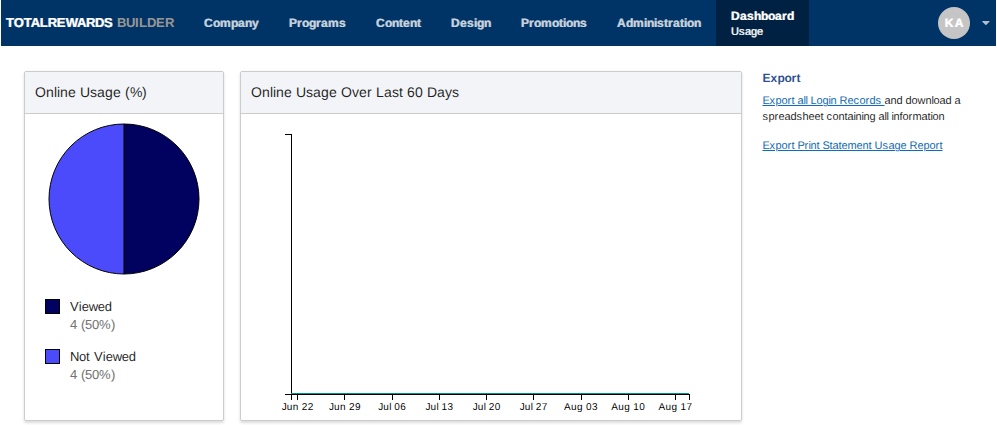
- Click Export all Login Records to download utilization report.
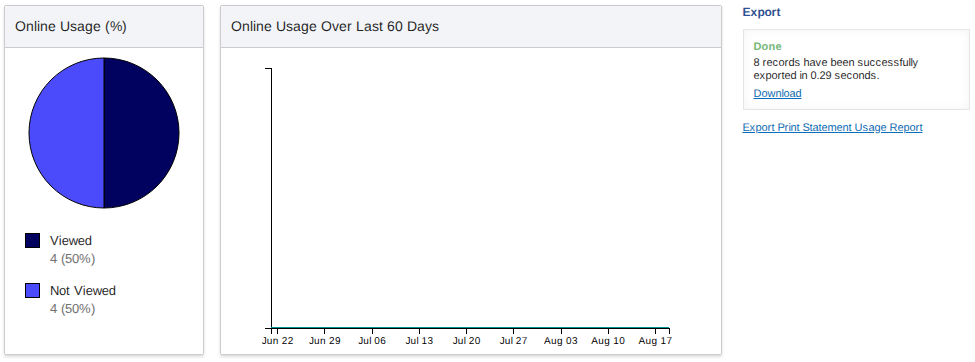
- A counter will display, showing that records are being prepared.
- When the file is ready, click the Download link to save a CSV report.
- Check the utilization report.
- Last Login – Indicates that the employee has viewed their statement and shows the date of their most recent login.
- Platform – Displays the type of device or operating system the employee used to sign in, such as Windows, Android, iOS, iPad, etc.
- Browser – Shows which browser was used to access the statement, e.g., Firefox, Opera, Safari, Chrome, MSIE, Brave, etc.
- Groups/Labels – Displays any groups or labels assigned to the employee, helping categorize users for reporting or filtering purposes.

- Click Export Print Statement Usage Report to download statement activity.
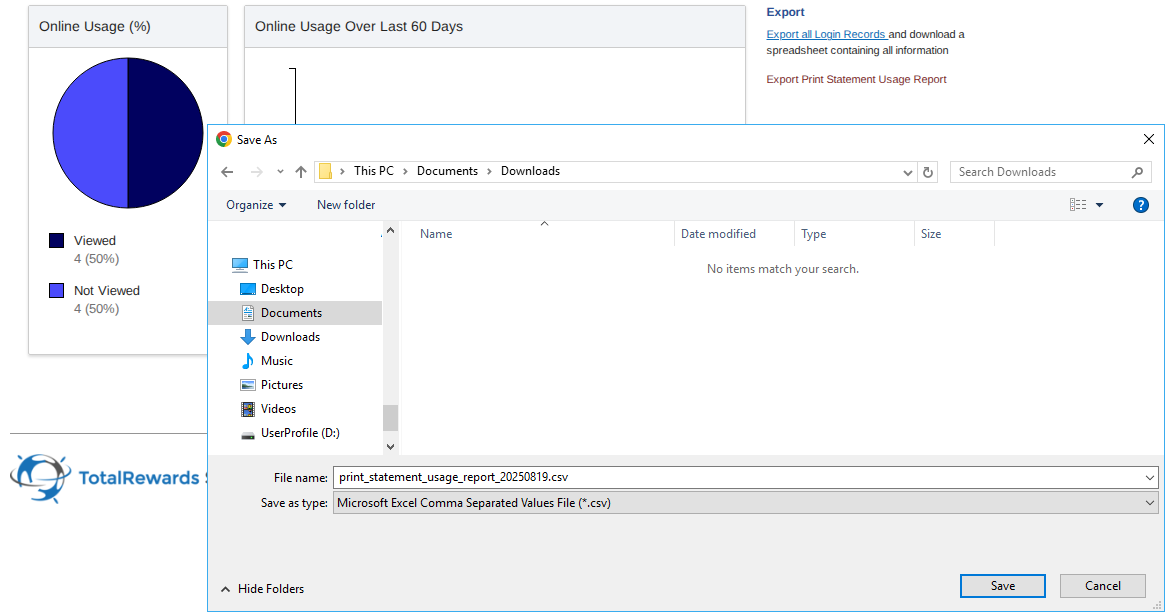
- View statement activity report.
- DateTime – the date and time the print/pdf version was viewed.
- Name – Displays name of the employee, administrator or manager.
- Email – Shows the email address.
- Role – Displays role if employee, administrator or manager if applicable.
- Action – Indicates whether the statement was print_own or print_other.
- Description – Shows printed own statement for employee or printed statement of for administrator and manager.

📌 Note: The reports provide insight into employee engagement with statements. Use the Utilization Report to track overall online statement access and trends, and the Statement Activity Report to monitor print or PDF activity by employees, administrators, and managers.
⏩ Quick Steps: Go to Dashboard → Select Usage → Export Login Records → Download CSV → Review Last Login, Platform, Browser, Groups → Export Print Usage Report → Review Date/Time, Role & Action